

Short answer: Thirteen tools under $100 are genuinely production-capable in 2026. The split is between one-off licences and monthly subscriptions. For anyone editing weekly, a subscription with regular feature updates usually beats a cheaper perpetual licence that stops receiving them.
Quick Summary
TL;DR: In 2026, spending thousands on video editing suites is simply unnecessary. The right tool under $100 can produce scroll-stopping, brand-quality videos, fast. Whether you’re a solo creator or running a full content team, these 13 editors give you professional results without the professional price tag. #tldr
- Main Takeaway:
Choose a video editing software that matches your style, test it out, and focus on making great content.
Top Picks
- InVideo: Ideal for teams that need quick and ready-to-share videos.
- CapCut Pro: Simple, fast, and full of AI tools that help you save time.
- Filmora: Best for creators who like more control over their edits.
If you are looking for more than editing, such as scripting, planning, and content management, ShortVids can help you turn your raw clips into videos that truly stand out online.
Start editing smarter videos with expert guidance today!
The video editing software market has been completely disrupted. What used to cost hundreds, AI captions, smart cuts, 4K export, team collaboration, now ships inside tools that cost less than a Netflix subscription. The barrier to creating professional content has never been lower.
But here’s the problem: most creators pick the wrong tool, either overpaying for features they’ll never use, or settling for free tools that bottleneck their growth
This guide cuts through the noise. We tested 13 tools under $100 and ranked them by real-world performance: editing speed, AI usefulness, export quality, and bang-for-buck. You’ll walk away knowing exactly which tool to buy, and how to use it like a pro. And if you are exploring how storytelling shapes video engagement, check out our guide on Video Storytelling and How to Use It.
Video content is still on the rise. In fact, 91% of businesses now use video as a marketing tool, up from 86% in 2023, according to Wyzowl’s 2025 State of Video Marketing Report.
What Separates a Good Budget Editor from a Great One
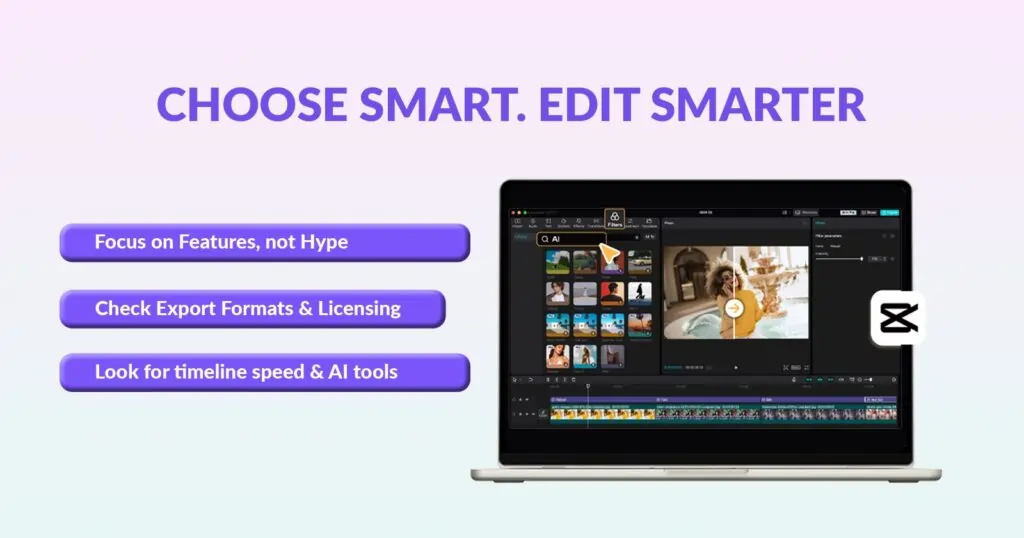
Choosing video editing software under $100 is not just about the price. You need a tool that works well for you, gets the job done reliably, and can grow with your needs. Below, I will discuss the practical criteria that separate useful budget editors from frustrating ones. Think of this as your buying checklist. Focus on features that save you time, important quality checks, and contract items that protect your work.
For quick presets, export guides, and workflow templates you can actually use, see the video editing resources at ShortVids. We make testing apps and setting up projects much faster.
Core Editing Power (Non-Negotiables)
These are the fundamentals you will use every day. If an editor fails here, nothing else matters.
- Timeline & Editing Controls – Look for a responsive, frame-accurate timeline with basic trimming, ripple delete, slip/slide tools, and the ability to set in/out points quickly. Keyboard shortcuts and a clean undo history speed up repeated tasks.
- Multi-track Support – At minimum, you want separate video and audio tracks so you can layer b-roll, voiceovers, music, and sound effects. Two or more audio tracks are essential for basic sound design.
- Transitions, Titles, and Keyframes – A library of clean transitions, legible title templates, and keyframe controls for motion and opacity let you polish videos without extra plugins.
- Export Options & Formats – The editor should export common codecs (H.264/MP4, MOV) and allow custom bitrate and resolution settings. 1080p at 30/60 fps is baseline; 4K export is a strong plus if you shoot high-res.
- Presets for Platforms – Built-in export presets for YouTube, Instagram Reels, TikTok, and LinkedIn save time and reduce export errors.
- Media Management – Basic bin/folder support, proxy workflows for large files, and a clear import/export flow matter when projects grow.
Practical test: load a 4-8 minute project and try basic cuts, add a B-roll, drop music, and export. If the app stalls or forces awkward workarounds, keep looking.
Need help choosing? Talk to our video experts!
AI Features Worth Paying For
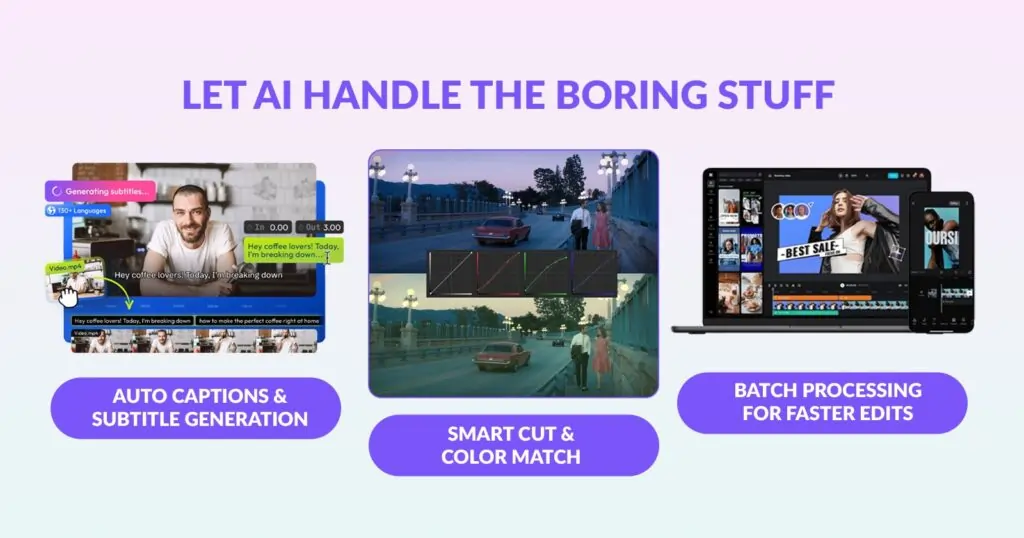
AI can be a huge time-saver, but evaluate it for usefulness, not hype.
- Auto Captions & Subtitle Generation – Choose tools that create accurate SRTs and let you edit text easily. This lets you publish faster and improves accessibility and video SEO.
- Smart Cut / Auto Edit – Automatic scene detection and smart trimming are great for rough cuts. They should be accurate enough that you only need to refine, not rebuild, the edit.
- Noise Reduction & Auto Audio Leveling – AI-driven audio cleanup (removes hiss, balances voice/music), prevents manual EQ fiddling for every clip.
- Color Match & One-Click Corrections – Auto color matching helps maintain a consistent look across cameras. Look for simple sliders to tweak auto results.
- Template-driven Reformatting – AI that automatically reframes and resizes a horizontal edit for vertical short formats is extremely useful for repurposing content.
- Batch Processing & Preset Application – Able to run the same correction or export on many clips at once.
Note: AI should speed edits but not remove the need for human review. Check whether the vendor clearly shows when AI was used and whether you can override suggestions.
Performance and Device Fit
Related: the full resources library.
Your hardware and preferred work environment should guide your choice.
- Desktop Performance – For serious edits, pick software that handles 1080/4K smoothly on your machine. Check CPU/GPU requirements and proxy workflows for slower systems.
- Web-based vs Native Apps – Web editors are convenient and platform-agnostic, but require a stable internet connection and may limit export controls. Native apps tend to be faster and have deeper feature sets.
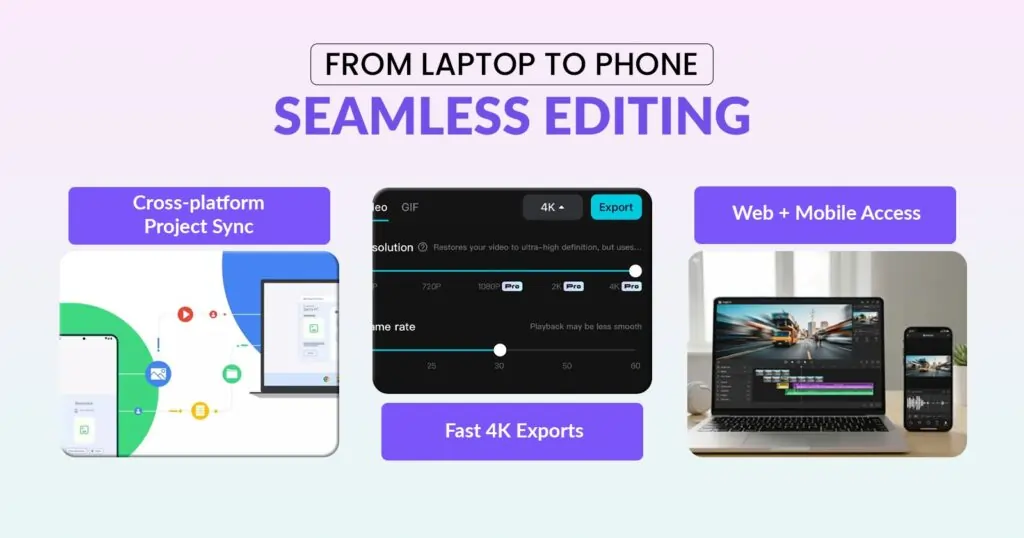
- Mobile Editing Support – If you create on the go, test whether the mobile app exports the same quality and supports project sync between devices.
- Cross-platform Project Sync – Projects that sync across mobile, web, and desktop without losing edits are a real productivity win.
- File I/O Speed & Stability – Slow imports, frequent crashes, or buggy exports are immediate deal-breakers.
Tip: Look for trial downloads and run a sample project on your usual device. Real-world testing beats marketing specs.
Licensing, Watermark Policy, Updates, and Support
The fine print determines whether a product is suitable for business use or only for hobby use.
- License Model – Annual subscription, one-time fee, or freemium. Confirm whether the quoted price is per user, per device, or per organization.
- Watermark Policy – Ensure paid tiers remove watermarks and that promotional overlays are not present in exported files.
- Commercial Use Rights – Check whether the license covers commercial use, especially for stock footage, music libraries, or templates bundled with the software.
- Update Cadence & Feature Roadmap – Regular updates mean better security and new features. Check the vendor’s update history and whether major features are behind paywalls.
- Customer Support – Look for email, chat, or forum support and response-time estimates. Community forums and knowledge bases are useful but not a substitute for official support when deadlines matter.
- Refund & Trial Terms – Clear trial period and refund policy reduce risk. Avoid vendors with opaque cancellation or auto-renewal terms.
Always keep a copy of the license terms or a screenshot when you subscribe. That protects you if the vendor changes policy later.
Security and Asset Ownership
Protecting your footage and ownership rights matters, especially for client or paid work.
- Asset Ownership – Verify that you retain full ownership of your uploaded media and exported videos. Some cloud services have restrictive clauses; read the terms.
- Secure Transfers & Storage – For cloud editors, check encryption in transit and at rest. Services that offer private or enterprise storage are better for sensitive projects.
- Backup & Export Options – Ensure you can export project files and raw assets. The ability to download an editable project file avoids vendor lock-in.
- Collaboration Permissions – When multiple people access projects, permission granularity (view, comment, edit) prevents accidental overwrites.
- GDPR/Privacy Compliance – If you handle EU or UK customer data, check compliance claims. This is important for customer testimonials or user footage.
- Two-factor Authentication – For accounts with shared brand assets, enable two-factor authentication and strong admin controls.
If you plan to work with client footage, prioritize services that explicitly guarantee asset ownership and provide secure storage options.
Quick Checklist Before You Buy
| Feature | Why it Matters | Minimum Acceptable Standard |
|---|---|---|
| Timeline responsiveness | Speed and accuracy of edits | Frame-accurate trimming; keyboard shortcuts |
| Multi-track audio/video | Layering b-roll, VO, music | At least 2 video + 2 audio tracks |
| Export formats | Compatibility with platforms | MP4/H.264 preset + custom bitrate |
| Auto captions | Accessibility and SEO | Editable SRT export with >90% accuracy |
| Color match | Visual consistency across clips | One-click color match + manual tweak |
| Mobile sync | Work from any device | Project sync between mobile and desktop |
| Watermark policy | Professional output | Paid plans export watermark-free |
| License for commercial use | Legal use for clients | Explicit commercial use rights |
| Security & backups | Protect client assets | Encrypted transfers and exportable backups |
Top 3 Picks – Best Video Editing Software Under $100
After testing 13 tools, three editors clearly stood out for their blend of usability, creative depth, and real-world value. Each of these platforms performs consistently across editing speed, AI assistance, and export quality without crossing the $100 limit. Whether you are a solo creator, an agency, or part of a marketing team juggling multiple campaigns, these three options strike the right balance between affordability and professional results.
1) CapCut – Best Overall (Pro Plan)
CapCut Pro is a great choice because it balances power and ease of use. It is perfect for creators who need quick results and don’t want to learn complicated skills. The Pro has great features like AI-generated captions, motion tracking, and easy-to-use cutting tools. It helps you edit videos easily and make them look professional. You can switch between the mobile app, desktop, and web versions, so you can work on any device you prefer.
Pros
- Intuitive interface with advanced tools for color grading, overlays, and transitions
- Strong AI feature set (Auto Captions, Background Remover, Smart Cut)
- Cloud projects and collaborative access for team workflows
Cons
- Watermark on free exports
- Limited third-party plugin support
Recommended For: Creators, small teams, and content managers producing regular short-form and long-form content.
Example Use Case: Turning a YouTube Shorts batch into optimized TikTok and Reels variants with one-click resizing.
2) Filmora – Best for Intermediate Creators

Filmora hits the sweet spot between beginner ease and pro-grade control. It is built for creators who’ve moved past drag-and-drop editing but still prefer a clean, guided interface. The latest version of Filmora has AI Audio Stretch, Instant Mode, and preset LUTs, simplifying color correction.
Pros
- Reliable performance on both Windows and Mac
- 100+ built-in templates and LUTs
- Advanced timeline controls for smooth multi-track editing
Cons
- Exports can be slower with heavy effects
- Certain advanced filters require a subscription to access
Recommended For: YouTubers, vloggers, and freelancers who want creative control without the steep learning curve of DaVinci or Premiere.
Example Use Case: Editing branded explainers with color grading and title animation without outsourcing to a studio.
3) InVideo – Best for Marketing Teams & Fast Turnarounds

InVideo excels at speed, collaboration, and ready-made assets, perfect for teams managing frequent ad campaigns or branded content. It offers 5000+ templates, an AI script assistant, AI automation, and automated voiceovers to build social-ready videos fast. Its browser-based editor allows real-time collaboration and content approval without installing software.
Pros
- AI script generator and text-to-video
- Massive template library optimized for YouTube, TikTok, and Instagram Ads
- Team workspaces for approvals and feedback
Cons
- Requires a stable internet connection for live previews
- Limited custom motion options for complex transitions
Recommended For: Filmora is recommended for agencies, marketers, and brand teams managing multiple campaigns per month.
Example Use Case: Creating and testing three ad variations across social platforms, then analyzing engagement with insights similar to AI Creative Testing.
| Software | Best For | Key Features | Approx Price Range |
|---|---|---|---|
| CapCut Pro | Creators & small teams | AI smart cut, auto captions, cloud sync, multi-device support | $7–$10/month |
| Filmora | Intermediate creators | LUTs, Instant Mode, multi-track editing, templates | $49.99 annual license |
| InVideo | Marketing teams & agencies | AI scriptwriter, templates, text-to-video, collaboration tools | $10–$20/month |
The Other 10 Notable Video Editing Software Under $100
The top three video editing tools excel in overall value, but several others are worth considering for specific needs. The editors below prove that affordability can maintain quality, whether you are editing YouTube videos or creating marketing clips. Together, they provide a solid selection of video editing software under $100, catering to creators, freelancers, and small teams with varying skill levels and workflows.
4) Movavi Video Editor – Best for PC Users Who Want Stability and Speed

Movavi is a good video editor for Windows users who want speed and reliability. It is easy to set up without any complicated steps. You can simply drag and drop to arrange clips on the timeline. The one-click AI tools, such as automatic subtitles and noise removal, make editing simple. Movavi also allows for smooth 4K exports, which makes it a great choice for budget-conscious users.
Pros
- Intuitive interface
- Solid export quality
- Fast rendering for everyday edits
Cons
- Fewer advanced VFX and plugin options
- Windows-only optimized versions available
- Approx price: ~$55 per year
5) iMovie – Best Free macOS/iOS Starter Experience

If you are using Apple gear and want to avoid any upfront fees, iMovie is a great option. It is easy to use and delivers solid export quality. While not packed with pro features, it covers the essentials for simple edits and social clips.
Pros
- Free with Mac and iOS devices
- Seamless mobile-to-desktop workflow
Cons
- Limited effects library
- No advanced color grading options
- Mac and iOS only
6) DaVinci Resolve (Free) – Best free pro-grade color + audio

If you are a creator looking to improve your skills, you can use the free version of DaVinci Resolve. It provides high-quality color grading, audio editing, and a full multi-track timeline at no cost.
Pros
- Professional tools available at no cost
- Fully capable of editing in 4K
- Widely used as an industry standard
Cons
- Steep learning curve
- High hardware requirements for smooth performance
- The free version excludes some advanced studio features
7) HitFilm Express – Powerful VFX for users who want advanced effects

HitFilm Express offers strong visual effects tools on a free or low-cost tier, ideal for creators producing cinematic intros, motion graphics, or VFX-heavy content.
Pros
- Built-in composites and VFX
- A growing community of templates
Cons
- Less optimized for everyday editing speed
- May require spending on plugins
8) Shotcut – Lightweight open-source editor with broad format support
Shotcut is a free, open-source video editor. It supports many formats and works well on basic computers. This software is great for creators on a budget who want flexibility instead of a polished look.
Pros
- Free
- Cross-platform
- Wide format support
Cons
- Less refined interface
- Fewer built-in templates
- Effects compared with paid editors
9) OpenShot – Simple, free, cross-platform editor for basic tasks

OpenShot is a simple video editor that works on Mac, Windows, and Linux. It is great for making basic cuts, adding simple titles, and quickly exporting videos when you do not need advanced features.
Pros
- Free
- Easy to learn
- Cross-platform
Cons
- Limited advanced features
- Occasional stability issues
10) FlexClip – Web-first Editor with Templates and Low-cost Plans

FlexClip works entirely in your browser and is great for marketers or creators who want speed, templates, and easy sharing. Its template library and online collaboration make it appealing.
Pros
- Web-based (no install)
- Strong template and cloud workflow
- Quick social exports
Cons
- Requires an internet connection
- Deeper editing features are limited
Approx pricing: ~$19.99/month for the paid plan
11) VSDC Free / Pro – Windows-friendly Budget Pro Features

VSDC is a Windows-only editor with both free and low-cost Pro versions. It offers motion tracking, transitions, and color tools at a budget price.
Pros
- Powerful features for cost-sensitive users
- Good for Windows
Cons
- UI less polished
- The learning curve is higher for beginners
12) Clipchamp – Microsoft-backed, Simple Editor, Good for Quick Marketing Clips
Clipchamp provides a streamlined editing experience, tied into the Microsoft ecosystem, making it handy for creators and marketers using Windows and Teams.
Pros
- Built-in stock library
- Quick social format exports
- Good for team workflows
Cons
- Fewer advanced editing tools
- Not good for deep editing
13) FilmoraGo (Mobile-first paid tier) – Best for Creators Editing on Mobile

For creators who edit on mobile or prefer mobile-first workflows, FilmoraGo (by the makers of Filmora) offers mobile editing with good export quality and paid upgrades under $100/year.
Pros
- Strong mobile support
- Good for social clips
- Mobile-first creators
Cons
- Less power than desktop editors
- Fewer advanced controls
Smart Comparison between Video Editing Software Under $100
| # | Software | Platform(s) | Price (Free/Paid) | AI Features | Multi-format Exports | Templates Included | Mobile Support | Best For |
|---|---|---|---|---|---|---|---|---|
| 1 | CapCut Pro | Windows, macOS, Web, iOS/Android | Paid (Free tier) | Auto-captions, Smart Cut, BG Remover | YouTube/Shorts/Reels formats | Large library | Full mobile + desktop | Creators & small teams |
| 2 | Filmora | Windows, macOS | Paid (~$49.99/year) | AI audio cleanup, Motion Tracking | 1080p/4K, social formats | 900+ effects & presets | Basic mobile companion | Intermediate creators |
| 3 | InVideo | Web (browser) | Paid (Free tier) | AI script-to-video, voiceover | Web export for social & YouTube | 5000+ templates | Mobile web access | Marketing teams & agencies |
| 4 | Movavi Video Editor | Windows, macOS | Paid (~$55/year) | Basic AI tools | 4K export | Moderate | Desktop only | PC users wanting speed & simplicity |
| 5 | iMovie | macOS, iOS | Free | Minimal | 4K, Apple device formats | Limited | iOS/macOS only | Mac users & beginners |
| 6 | DaVinci Resolve | Windows, macOS, Linux | Free (+ paid Studio version) | Some AI color tools | Full formats & 4K/8K | Fewer ready templates | Desktop only | Advanced creators seeking Pro Tools |
| 7 | HitFilm Express | Windows, macOS | Free (+ paid add-ons) | Basic automation | 4K export | Moderate | Desktop only | VFX-focused creators |
| 8 | Shotcut | Windows, macOS, Linux | Free | None | Broad format support | Very limited | Desktop only | Budget open-source flexibility |
| 9 | OpenShot | Windows, macOS, Linux | Free | None | Standard formats | Few templates | Desktop only | Quick basic edits across platforms |
| 10 | FlexClip | Web | Free (+ paid tier) | Some AI tools | Social & web formats | Strong | Browser/mobile | Marketers producing fast social assets |
| 11 | VSDC Free / Pro | Windows | Free / Paid Pro | Basic motion tracking AI | 4K export | Moderate | Desktop only | Windows users wanting pro features |
| 12 | Clipchamp | Windows (Web) | Free (+ paid) | Basic automation | YouTube & social exports | Good starter templates | Web/mobile | Windows marketers & teams |
| 13 | FilmoraGo | iOS/Android | Free (+ paid tier) | Limited or mobile AI only | Mobile social formats | Mobile-focused | Mobile only | Mobile-first creators |
How to Get Pro Results from a Sub-$100 Editor
You can get professional results with video editing software that costs less than $100 if you organize your workflow and use the built-in automation tools. The most important factor is not the software itself but how well you use it. By following these best practices, you can create polished videos more quickly and stay within your budget. This advice works for editing social media content, YouTube ads videos, and marketing materials.
Workflow Primer (Organize Footage, Proxies, Batch Exports)
Using these best practices will help you create polished videos more quickly and on a budget. This advice works for editing social media content, YouTube videos, and marketing materials. Use consistent naming conventions so you can find clips easily when deadlines hit. If your laptop is not high-end, use proxy files (lower-resolution duplicates) for smoother playback – most tools like Filmora and DaVinci Resolve make this simple. When your edit is final, switch back to full-resolution for export.
Batch exporting is another pro move: create multiple aspect ratios or platform-ready versions (like 9:16 for Reels and 16:9 for YouTube) in one go to save time and ensure brand consistency.
Quick Templates and Repurposing Tips (Vertical, Square, Landscape)
Most video editing software under $100 now includes customizable templates. These are not just shortcuts, but they are creative frameworks that help you maintain brand style and pacing. For example, InVideo and FlexClip offer easy resizing for different platforms, so a single video can be reused across YouTube, Instagram, and TikTok.
A smart way to scale is by repurposing long-form content into short-form snippets. Many editors now rely on content repurposing tools like these to automate clip selection, captions, and reformatting. This helps you produce more content without extra editing hours.
Sound and Caption Workflows (Auto Captions, SRT Export)
Sound often decides whether a viewer keeps watching. Clean audio, subtle background music, and synchronized captions increase engagement dramatically. Use auto-caption tools like CapCut, Filmora, and Clipchamp to create and export SRT files. This keeps your subtitles editable across different platforms.
Keep the volume levels balanced. Set dialogue around –6dB and background music between –20dB and –25dB. These small changes will make your video sound professional, even without extra mixing tools.
When to Combine Tools (Quick Edit in CapCut + Polish in Resolve)
You do not have to stick to one editor. Many professionals combine tools for flexibility. For example, you can trim and stylize your clips quickly in CapCut or Filmora, then export to DaVinci Resolve for color grading and final mastering. This hybrid workflow gives you creative control while staying within budget.
Try different combinations that fit your setup, especially if you use both mobile and desktop devices. Your goal should not be to use every feature, but to create a simple workflow that saves time and keeps your content consistent in quality.
Common Mistakes to Avoid When Using Video Editing Software Under $100
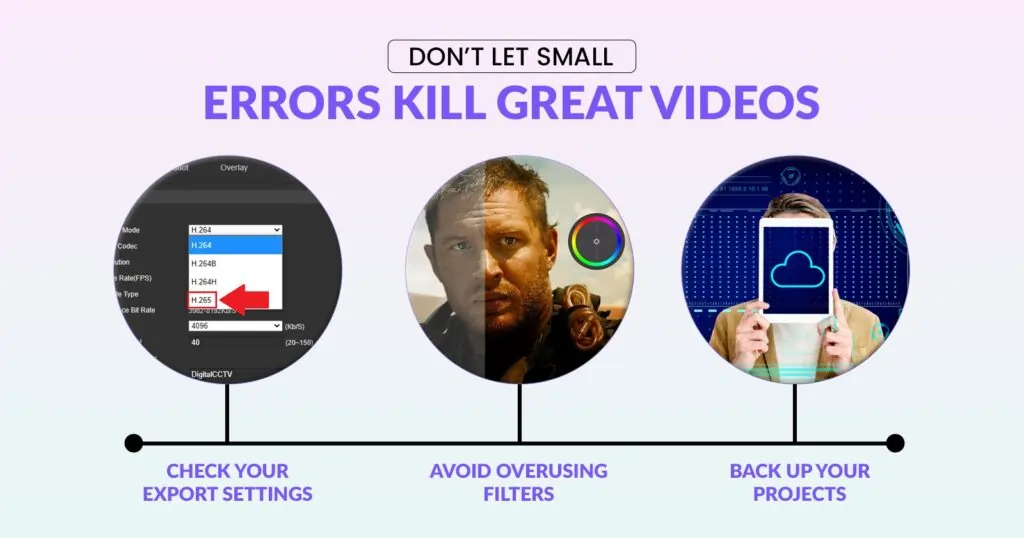
Even the best low-cost video editing software can feel limiting if you use it the wrong way. Many creators make simple mistakes that slow their workflow or reduce the final video quality. Avoiding these pitfalls ensures your edits look professional, no matter which video editing tool you are using.
Ignoring Export Settings
A common mistake in video editing is using the default export settings. Always check your resolution, frame rate, and bitrate before you finish rendering. A low bitrate can make your video look grainy, and different frame rates can cause stuttering. Most editing software allows you to create export presets, which helps keep your settings consistent for all your projects.
Overusing Built-in Effects
Low-cost editors often include flashy transitions, filters, and animations. While tempting, overusing them can make your content look amateurish. Keep effects subtle and in line with your brand style. A clean, minimal edit with clear cuts and balanced colors almost always performs better than one overloaded with effects.
Skipping Backup and Version Control
Budget tools sometimes crash, especially when handling large files. Save multiple versions of your project or enable auto-save if available. Store your raw files on external drives or cloud storage to prevent data loss. Losing your progress mid-project is frustrating and preventable with a simple backup routine.
Ignoring Audio Quality
Many editors focus so much on visuals that they forget about sound. Poor audio instantly lowers video quality. Always clean background noise, balance audio levels, and add subtle background music. Even free software like Audacity can help you polish audio before importing it into your main editor.
Not Using Shortcuts or Templates
Keyboard shortcuts and project templates save hours over time. Learn the basics for trimming, splitting, and timeline navigation in your chosen software. Most affordable editors now let you create custom templates for consistent branding, intro sequences, or text styles.
When DIY Editing Isn’t Enough, How ShortVids Takes You Further
The right software gets you 80% of the way there. The other 20%, strategic storytelling, platform-specific optimization, brand consistency at scale is where ShortVids comes in.
ShortVids is a professional video editing and content production service built for creators, agencies, and brands that need:
- Studio-quality edits on a predictable timeline
- Content repurposing, turn one video into a week’s worth of content
- Ad video production, scripts, edits, and platform optimization in one workflow
- YouTube and social content that’s built to perform, not just publish
Whether you’re launching a campaign, scaling a content operation, or simply want your time back, ShortVids delivers polished, high-performing videos without the hours at the timeline.
Final Thoughts
The best video editing software under $100, CapCut Pro, Filmora, and InVideo, now delivers results that would have cost thousands just a few years ago. Pick the tool that fits your workflow, master it, and stay consistent. And when you’re ready to scale without adding editing hours to your plate, ShortVids is ready to help you produce content that stands out and performs. At ShortVids, our professional video editing services are built for creators, agencies, and brands that want studio-quality output with predictable turnaround times. Start creating better videos today, talk to ShortVids today!
Frequently Asked Questions
Absolutely, and it’s better than most people expect. CapCut Pro, Filmora, and InVideo offer AI tools, 4K export, and team collaboration features that used to cost hundreds. You’re not compromising, you’re just spending smarter.
Upgrade to any paid plan. That’s the only legitimate fix. Avoid third-party “watermark remover” tools, they degrade quality and often violate the software’s terms of service.
It depends on your priorities. CapCut Pro wins on AI automation, cross-device sync, and platform templates, ideal for creators posting frequently. VN is better if you prefer manual control with a clean, ad-free experience and don’t need AI features.
CapCut, FilmoraGo, and VN lead on mobile. All three support vertical editing, text overlays, and direct social exports. CapCut’s AI features make mobile editing faster than anything else in this category.
Yes, DaVinci Resolve, Shotcut, and OpenShot are completely free, watermark-free, and capable of handling YouTube or client projects. The trade-off is a steeper learning curve and no AI automation.
For most creators and teams, CapCut Pro is the top pick, AI-powered, cross-device, and priced at under $10/month. For teams producing content at volume, InVideo edges ahead. For creators who want maximum creative control, Filmora is the clear choice.
That’s exactly why ShortVids exists. Our team handles the entire production pipeline, so you get professional, platform-optimized videos without touching a timeline.
Book a Call Today
- Fixed monthly plans starting at $999
- 24-hour turnaround time (or less) on all short-form edits
- 3-layer quality check system on every video
- No more chasing freelancers or managing editors
- Scale up to 50+ videos/month without hiring in-house
- Content team trained on platform trends, scroll-stopping hooks & storytelling
- Fully managed by professionals – you just upload & approve
- Response time: Under 1 hour (US & GCC time zones)
Cut your production costs, not your standards.